Why Your Analytics Data Might Be Wrong (and How to Fix It)

Alexander Vermeer

You’ve spent weeks setting up your analytics, building dashboards, and tracking conversions. But here’s an uncomfortable truth: your analytics data accuracy might be worse than you think. In fact, for most websites, analytics numbers are off by anywhere from 10% to 40%.
The good news? Once you know where the problems are, most of them are surprisingly easy to fix. Let’s walk through the most common reasons your analytics data might be wrong — and what to do about each one.
Ad Blockers and Tracking Prevention
This is the biggest culprit. Ad blockers and browser privacy features actively prevent analytics scripts from loading. Safari’s Intelligent Tracking Prevention, Firefox’s Enhanced Tracking Protection, and popular extensions like uBlock Origin all block requests to known analytics domains.
The result? A chunk of your real visitors simply never appear in your reports. You’re making decisions based on data that’s missing a significant portion of your audience — a major hit to analytics data accuracy.
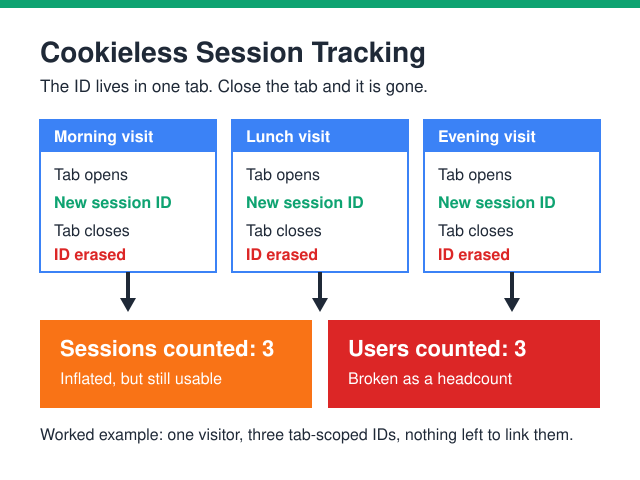
How to fix it: Consider server-side tracking, which routes data through your own domain and is much harder for ad blockers to detect. You can also explore cookieless tracking methods that don’t rely on third-party scripts at all.
Bot Traffic Inflating Your Numbers
Not every “visitor” to your website is a real person. Bots, crawlers, and automated scripts can account for a surprising amount of traffic. While Google Analytics does filter out known bots, many slip through — especially sophisticated ones that mimic human behavior.
If you’ve ever seen a sudden spike in traffic from an unusual country with near-zero engagement time, you were probably looking at bot traffic.
How to fix it: In GA4, check your traffic for sessions with zero engagement time or 100% bounce rates from suspicious sources. You can create segments to exclude these patterns. Also make sure the “Exclude all hits from known bots and spiders” option is enabled if you’re using any Universal Analytics properties alongside GA4.
Misconfigured Events and Goals
This one is more common than people think. A button click event that fires twice. A conversion that triggers on page load instead of form submission. A goal that counts page views instead of actual sign-ups. Small configuration mistakes can quietly distort your analytics data accuracy for months before anyone notices.
How to fix it: Use Google Tag Assistant to debug your tracking setup. Click through your own website and verify that each event fires exactly once, at the right moment. Pay special attention to events on pages with forms, pop-ups, and dynamic content.
Consent Banners Reducing Data Volume
If you’ve implemented a cookie consent banner (and you should, for GDPR compliance), you’ve probably noticed your tracked traffic drop. That’s because visitors who decline cookies don’t get tracked — at least not by default.
In some European markets, consent rates can be as low as 30-50%. That means you might be seeing only half of your actual visitors in your analytics.
How to fix it: Google offers a feature called Consent Mode, which sends cookieless pings to GA4 even when users decline consent. GA4 then uses modeling to estimate the behavior of unconsented users. It’s not perfect, but it closes a significant gap in your data.
Duplicate Tags and Double-Counting
If you’ve ever migrated from one analytics setup to another, there’s a good chance you have duplicate tracking codes on some pages. Maybe the old Google Analytics tag is still in your theme’s header while a new one runs through Google Tag Manager. The result: every pageview, event, and session gets counted twice.
Duplicate tags are sneaky because your traffic numbers look great — artificially great. Your attribution data and conversion rates get skewed in ways that are hard to diagnose without digging into the code.
How to fix it: View the source code of your website and search for your GA measurement ID (it starts with “G-“). If it appears more than once, you have a duplicate. Also check Google Tag Manager for redundant tags. A clean setup should have exactly one GA4 configuration tag firing per page.
Cross-Domain and Referral Issues
If your website spans multiple domains (for example, a main site and a separate checkout domain), sessions can break between them. Each domain starts a new session, which inflates your session count and loses the original traffic source. Your checkout might show your own website as the referral source instead of the actual campaign that brought the visitor in.
How to fix it: Set up cross-domain tracking in your GA4 data stream settings. Add all your domains to the referral exclusion list so they don’t reset the session. This ensures a visitor’s journey is tracked as one continuous session across all your domains.
How to Improve Analytics Data Accuracy
Fixing analytics data accuracy isn’t a one-time task — it’s an ongoing process. Here’s a simple audit routine you can follow:
- Check for duplicate tags — Search your page source for your measurement ID and make sure it appears only once per page.
- Validate your events — Use Tag Assistant or GA4’s DebugView to confirm each event fires correctly.
- Review your consent setup — Make sure Consent Mode is configured so you’re not losing all data from users who decline cookies.
- Filter out bot traffic — Create segments to identify and exclude suspicious traffic patterns.
- Compare data sources — Cross-reference GA4 numbers with your server logs, ad platform reports, or CRM data. Large discrepancies point to tracking issues.
- Test across browsers and devices — Your tracking might work perfectly in Chrome but break in Safari. Always test in multiple environments.
Wrapping Up
Perfect analytics data accuracy doesn’t exist. Every tracking setup has blind spots. But the difference between good and bad data often comes down to a handful of fixable issues — duplicate tags, missing consent mode, unfiltered bots, or broken events.
Take an hour to run through the audit steps above. You might be surprised by what you find. And once your data is cleaner, every decision you make based on it gets a little bit smarter.

Alexander Vermeer
Web analytics specialist with over 8 years of experience implementing tracking solutions for businesses of all sizes. Passionate about helping companies make sense of their data without drowning in complexity. When not debugging GTM containers, you'll find me advocating for privacy-respecting analytics approaches.